這篇筆記會教你 Flutter 專案中整合 Microsoft Authentication Library (MSAL),包含 iOS 和 Android 平台的完整設定步驟。
整合 MSAL 登入流程 (iOS)
Azure Portal 新增 iOS 平台
到 Azure Portal 註冊你的 APP
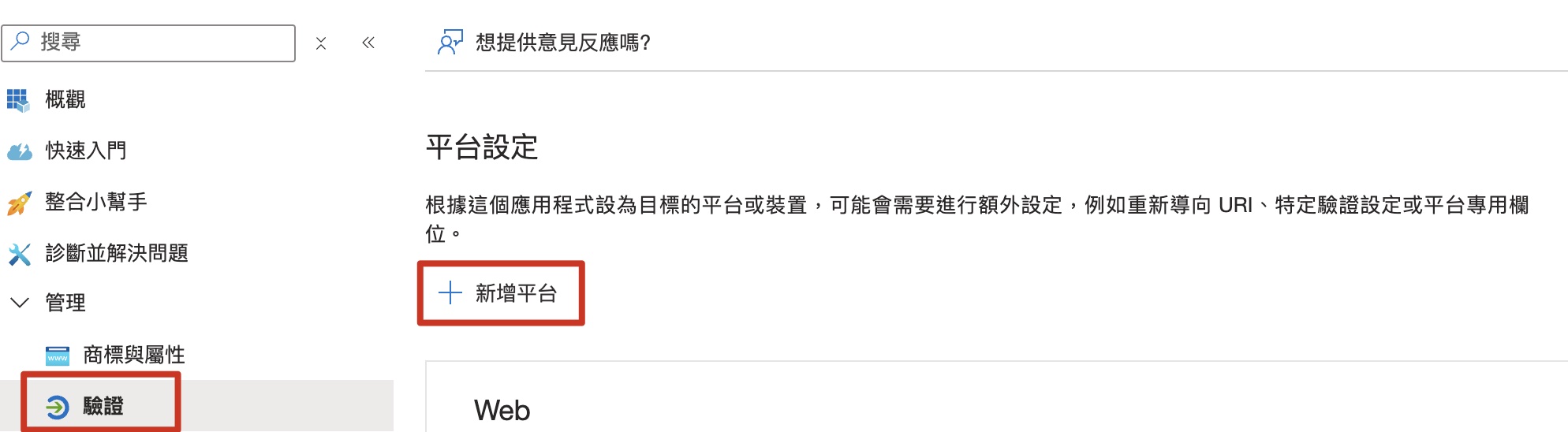
管理 → 驗證,新增 iOS/Android 平台

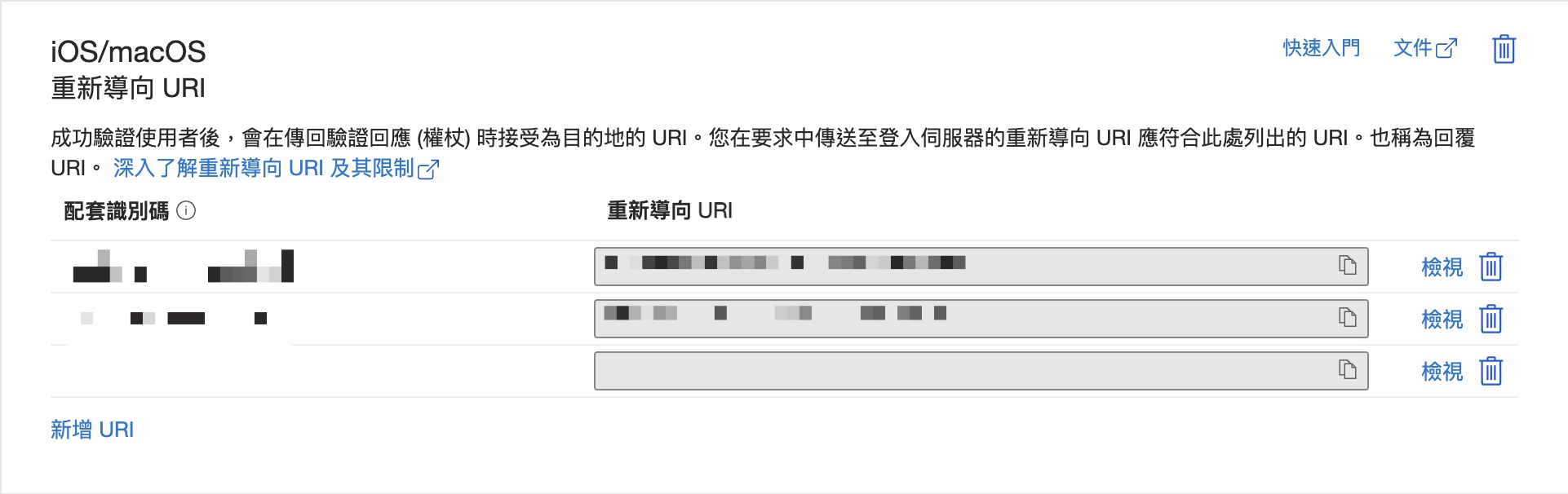
iOS 只需要把你的 APP Bundle ID 加入配套識別碼即可
Runner 設定
在你的專案中用 terminal 打開 Runner.xcworkspace,或輸入以下指令
1
open ios/Runner.xcworkspace/
添加一個
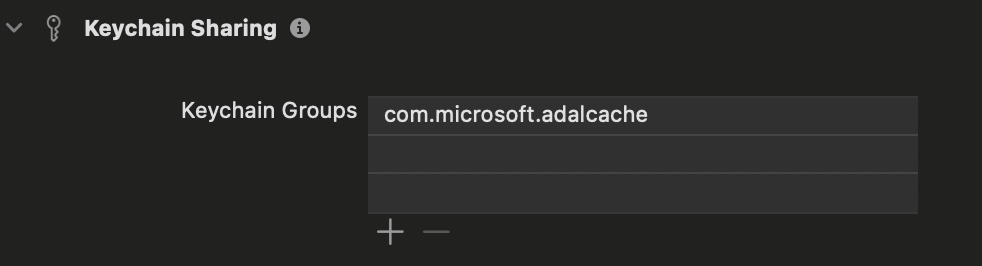
Keychain Sharing的 Capability,並將com.microsoft.adalcache加入 Keychain Group 中這麼做是因為,MSAL 登入後會將使用者的登入資訊存放在 Keychain iOS 的安全儲存系統中,儲存的內容包括如下
- Access Token
- Refresh Token
- ID Token
- 使用者帳戶資訊
- Token 的過期時間等
也因此,就算重新打開 APP,也會繼續顯示為登入狀態,如果要登出的話,就要呼叫
signOut()動作,會自動清除 keychain 中的登入資訊。清除的內容會有以下:
- 清除 Keychain 中儲存的所有認證資訊
- 移除快取的 token
- 清除當前登入的帳戶資訊
Info.plist 設定
(必要)加入 redirect URI scheme(這段是為了在你登入後將登入資訊回傳給你的 APP,一定要加)
1
2
3
4
5
6
7
8
9<key>CFBundleURLTypes</key>
<array>
<dict>
<key>CFBundleURLSchemes</key>
<array>
<string>msauth.$(PRODUCT_BUNDLE_IDENTIFIER)</string>
</array>
</dict>
</array>(可選)如果手機有安裝 Microsoft 的 Authenticator 這個 APP 的話,你希望在你 APP MSAL 登入時,都自動打開 Authenticator APP 來做登入,就要加入以下 Scheme,但若純粹指定使用 webview 來登入,就不需要(但也可以保留)
1
2
3
4
5<key>LSApplicationQueriesSchemes</key>
<array>
<string>msauthv2</string>
<string>msauthv3</string>
</array>
接下來就可以開始寫程式碼使用 MSAL 登入了
程式碼
initial MSAL, iOS 的部分只需要寫入你的 Authority 參數即可
通常為 “[https://login.microsoftonline.com/common](https://login.microsoftonline.com/common)”
common:所有帳號都能存取
organizations:只允許組織帳號存取
xxxxxxxx-xxxx-xxxx-xxxx-xxxxxxxxxxxx:特定組織帳號
1 | msalClient = await SingleAccountPca.create( |
broker 的部分為選擇要跳出來的登入頁面是哪一種,這邊指定 webView
整合 MSAL 登入流程 (Android)
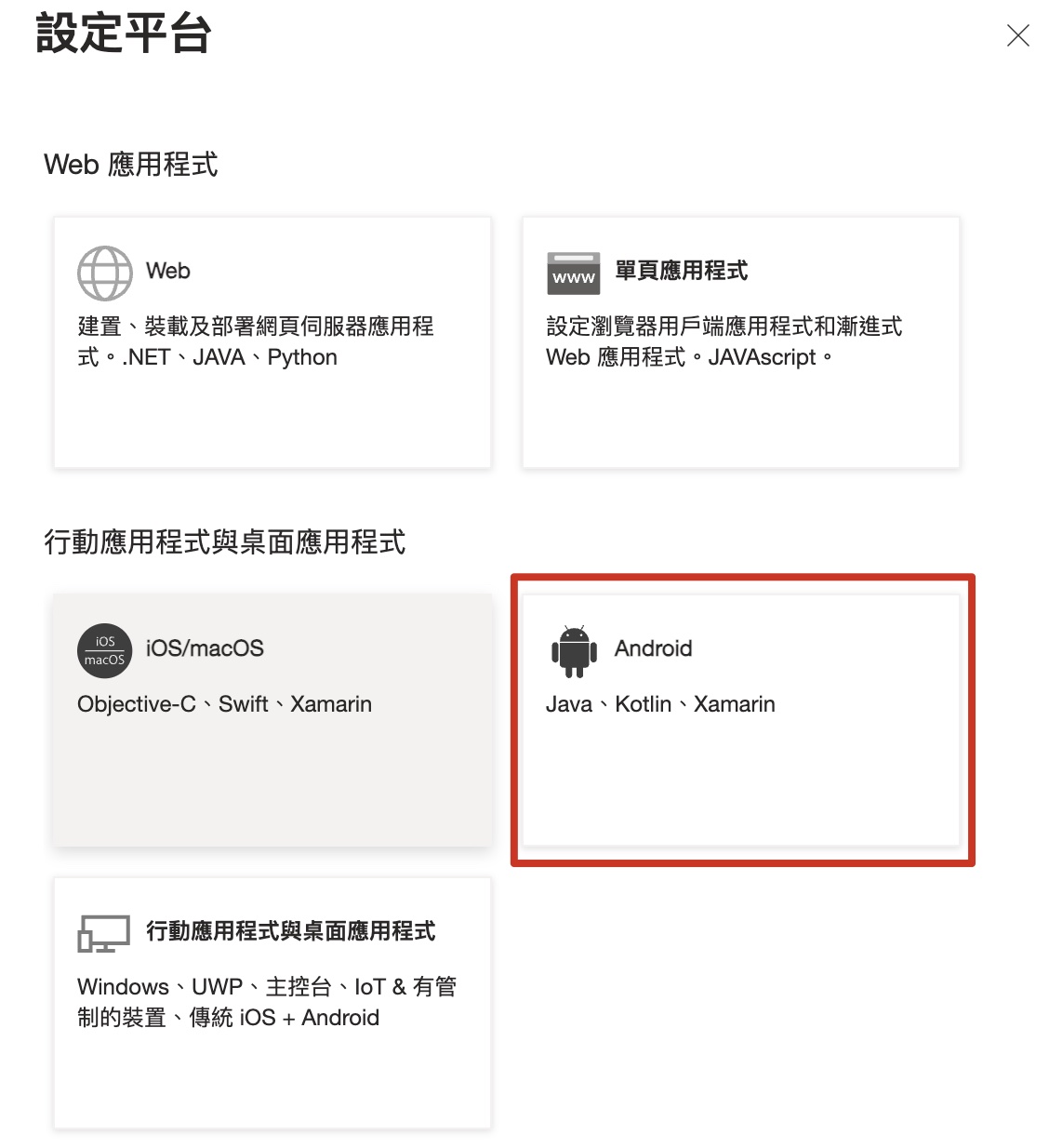
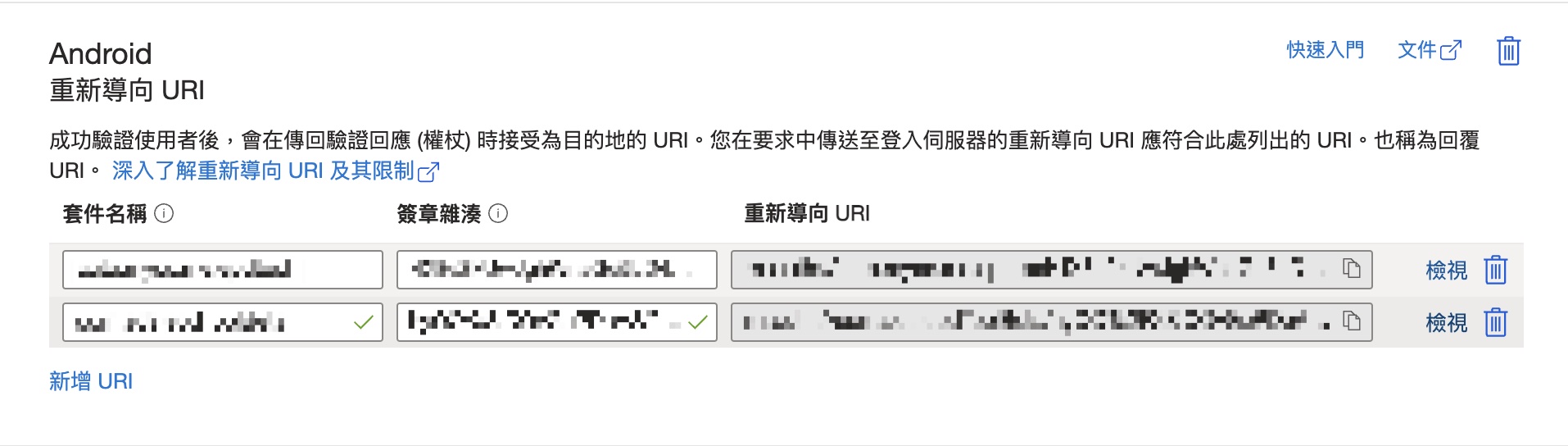
Azure Portal 新增 Android 平台
跟 iOS 差不多,只是多新增一個 Android 的平台
套件名稱填入你的 Bundle ID
簽章雜湊用以下指令在你的 terminal 中執行,注意以下兩點
app/底下記得先產生好 release 用的upload-keystore.jks- 指令要在你的專案跟目錄中執行
1
keytool -exportcert -alias androidreleasekey -keystore app/upload-keystore.jks | openssl sha1 -binary | openssl base64
建立 msal_config.json
在你的專案中建立 msal_config.json (放哪裏都可以,我是放在assets/ 內,記得到pubspec.yaml 指定該資料夾,否則引用不到)
1 | { |
AndroidManifest.xml 添加依賴
到 android/app/src/main/AndroidManifest.xml 添加以下
1 | <application> |
程式碼
- 填入你的
Client ID - 指定
msal_config.json位置 - 填入
Redirect URI(用簽章雜湊產生的 URI)
1 | msalClient = await SingleAccountPca.create( |
aad_oauth 以及 msal_auth 兩者套件差異?
aad_oauth
- 用途:主要用於與 Azure Active Directory (AAD) 進行 OAuth 認證。
- 功能: 提供簡單的 OAuth2 認證流程,能夠獲取 access_token 和刷新 token。
- 適用場景: 適合需要與 Azure AD 整合的 App,特別是那些不需要複雜的身份驗證邏輯的應用。
msal_auth
- 用途: 基於 Microsoft Authentication Library (MSAL) 的身份驗證套件。
- 功能: 提供更全面的身份驗證功能,包括支援多組織帳戶、帳戶切換、token 緩存等。
- 適用場景: 適合需要更複雜的身份驗證邏輯的應用程序,特別是那些需要支持多組織帳戶或需要更高級的身份驗證功能的應用。
結論
aad_oauth 用於
- 專案規模小
- 快速實現簡單認證
- 不需特別安全需求
- 原型開發或概念驗證
msal_auth 用於
- 需要企業級的安全性
- 需要支援 Microsoft Authenticator
- 需要處理複雜的認證場景
- 需要與 Microsoft 服務深度整合
- 長期維護的專案